What it is
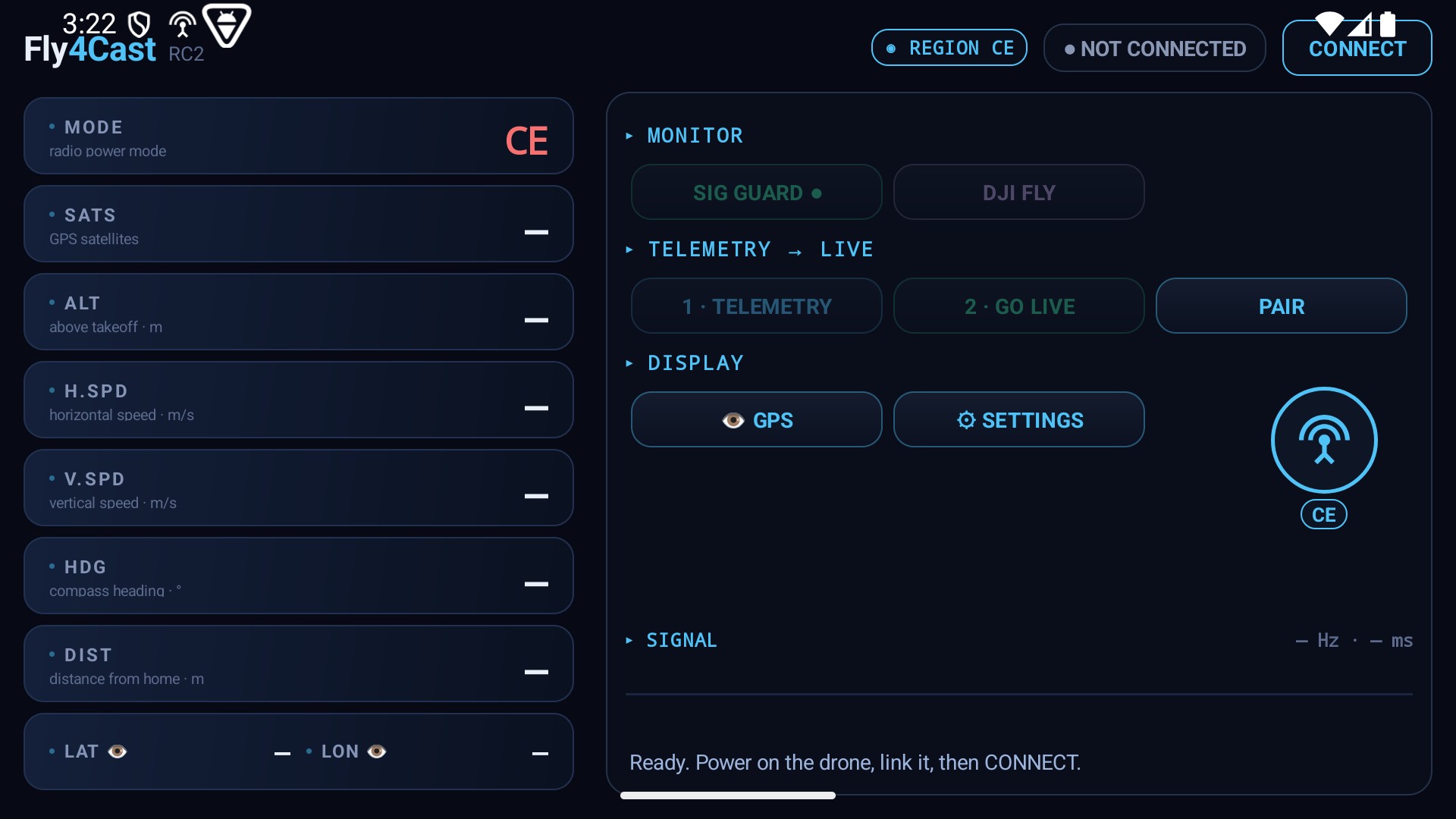
Fly4cast RC2 installs directly on the DJI RC2 controller. It reads the live telemetry the controller already receives from the aircraft, makes sense of it, and streams it to your Fly4cast account — so you, or anyone you share with, can watch the flight in a browser in real time. When you land, the whole flight is saved to your logbook with a full replay.
It does not modify DJI Fly or anything on the aircraft, and it does not change your radio in any way. It only reads, shows and streams — a monitor and a companion, nothing more.
What you get
- Live web cockpit — altitude, speed, heading, vertical speed, GPS, distance flown, distance to home, max altitude/range/speed and flight time, all live.
- Signal quality + radio mode shown live (read-only — the app never changes the mode).
- Live air traffic (ADS-B) around you, coloured by altitude, with alerts for anything low and closing.
- Full weather on one screen — flyability, wind at altitude, 24-hour trend, airspace, Kp index, Remote-ID.
- Signal / GPS guard that warns you on a sudden satellite drop or a stalled link.
- Co-pilot / spectator sharing — someone else can watch your flight live.
Install (one-time, from a computer)
You install two files, once. Both are on your account page under Account → API keys → “Get the app for your RC2”, each with a SHA-256 you can verify.
- Connect the RC2 to a computer with a USB-C cable (choose File transfer if it asks). Copy both .apk files into the controller’s Download folder.
- On the RC2, swipe down from the top and tap the settings gear (top-right).
- Go to Storage → Internal storage → Music and audio — the RC2’s roundabout way into the file browser.
- Open the top-left menu and tap Download — you’ll see the two files.
- Install the Package Installer first (the file prefixed “01”). The RC2 has no installer of its own; this adds one.
- Install Fly4cast RC2 second. On this first install, tap Open to launch it.
- Allow “unknown sources” if prompted.
The Package Installer is only needed again after a factory reset. To update the app later, just install the newest Fly4cast RC2 APK over the top — it updates in place.
Pair with your account (one-time, revocable)
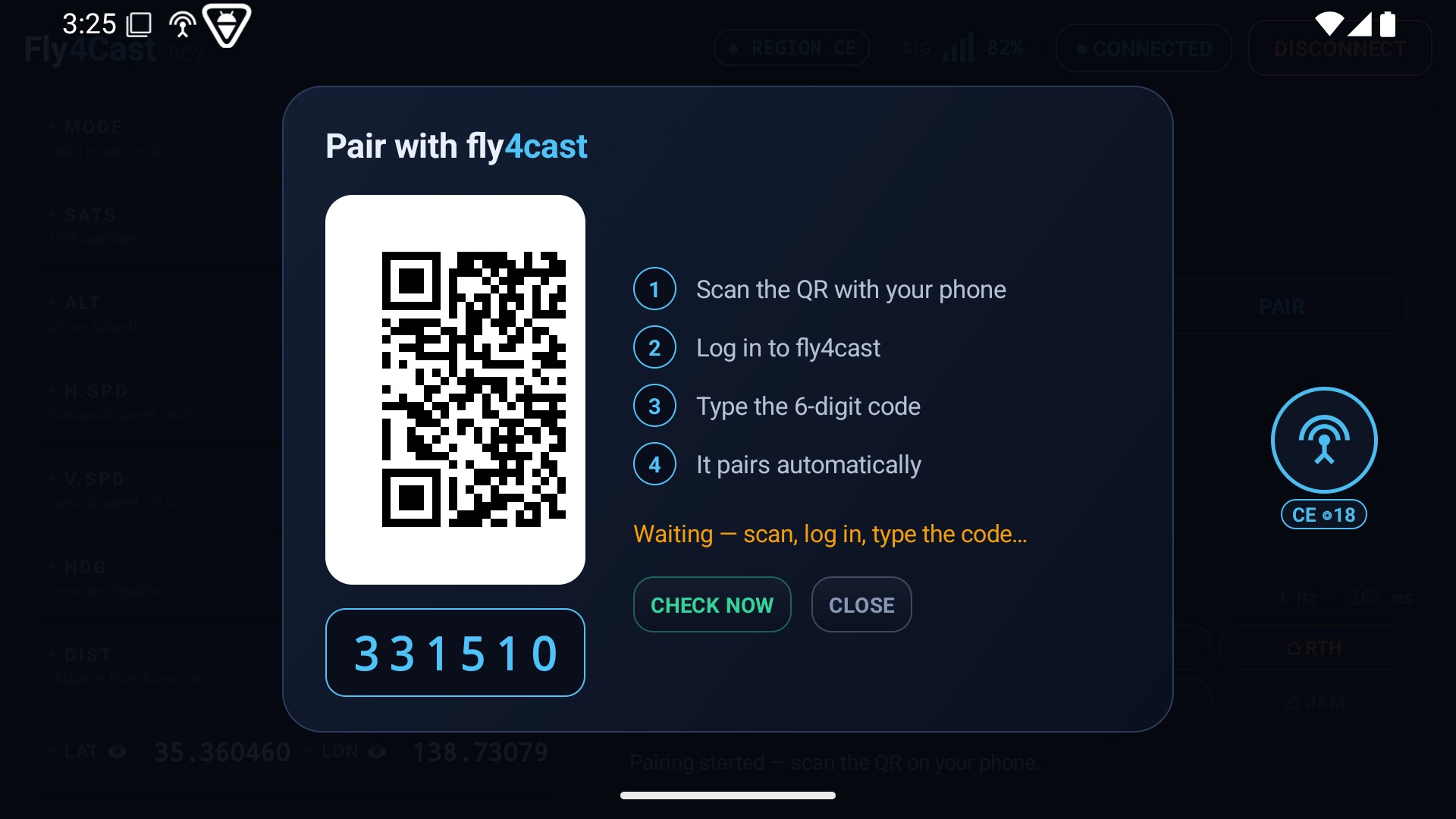
- In the app, tap PAIR. It shows a QR code and a 6-digit code.
- Scan the QR with your phone — it opens the pairing page on fly4cast.com (log in if asked).
- Type the 6-digit code and confirm. The app finishes pairing automatically.
That links the controller to your account. You can revoke it any time.
Fly it: Telemetry, then Go Live
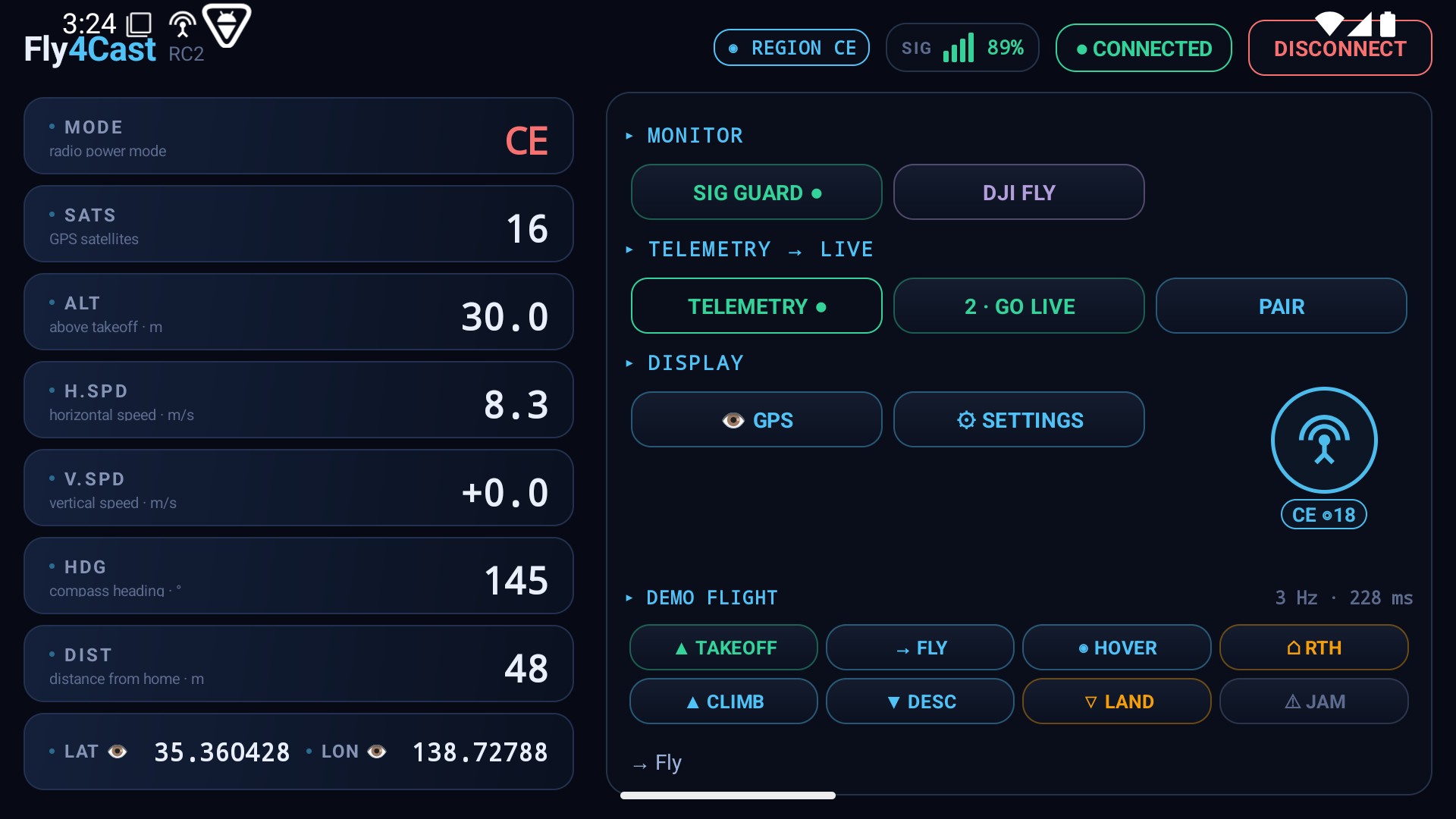
- Power on the drone and controller, then tap CONNECT.
- Tap 1 · Telemetry — the app starts reading live data; the instruments fill in.
- Tap 2 · Go Live — it streams to your web cockpit, live on any signed-in device.
That’s the whole loop. Land, and the flight saves to your logbook automatically.
Try the whole thing without flying (Demo)
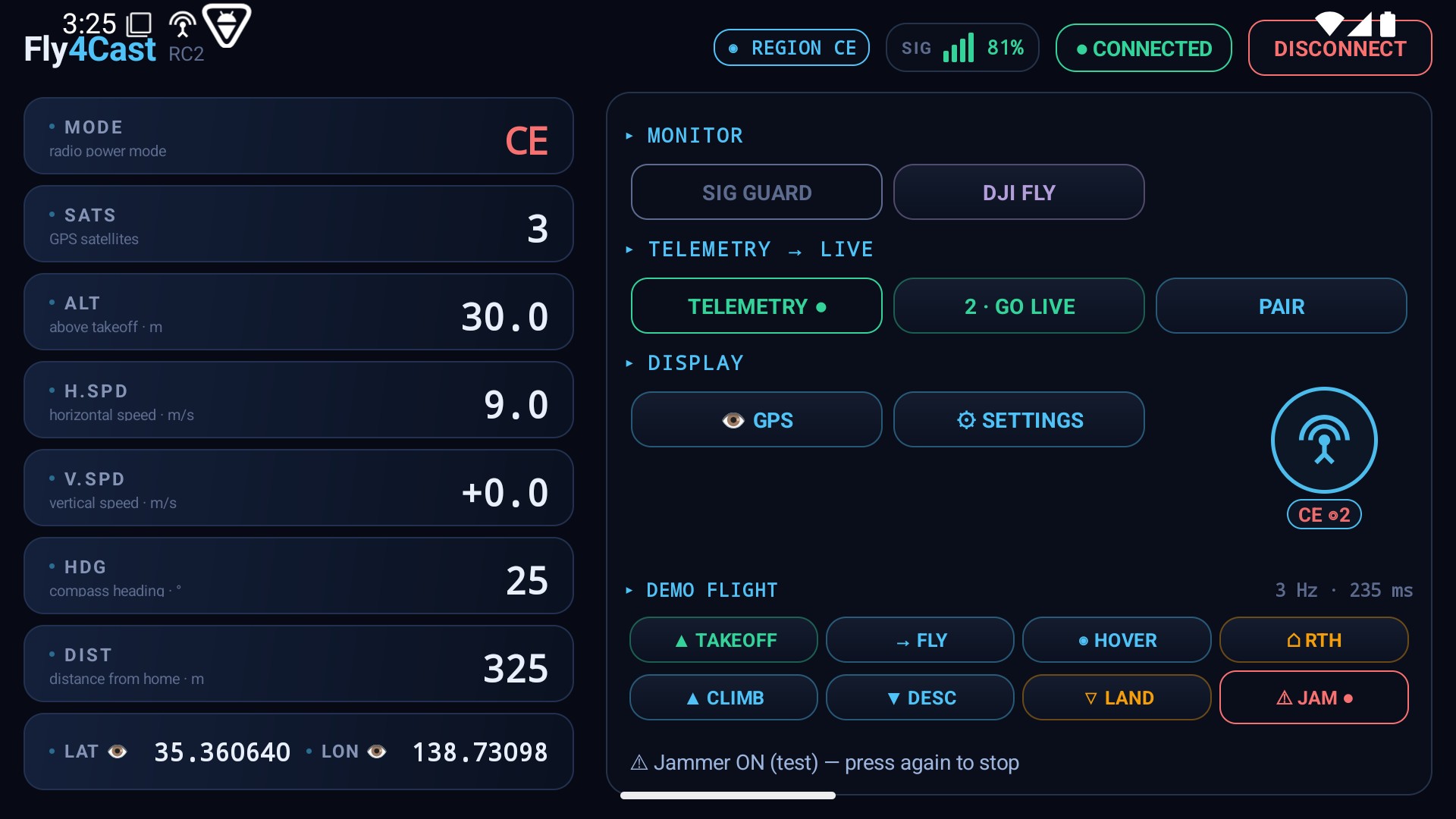
You don’t need a drone. In Settings, turn Demo on and pilot a simulated aircraft from the screen: Takeoff, Fly, Hover, Climb, Descend, Return-to-home, Land. It streams to your cockpit exactly like a real flight. There’s even a Jam test button that triggers a satellite drop on purpose, so you can watch the signal/GPS guard react — safely, on the ground.
Signal / GPS guard
Turn on Sig Guard and the app watches, while telemetry is live, for two things:
- a sudden, sustained satellite drop (a common jammer signature), and
- a stalled link (telemetry stops updating).
When it sees either, it warns you — a beeping alert, a red flash on the floating switcher, and a note in the cockpit. It only alerts; it never changes anything on the radio.
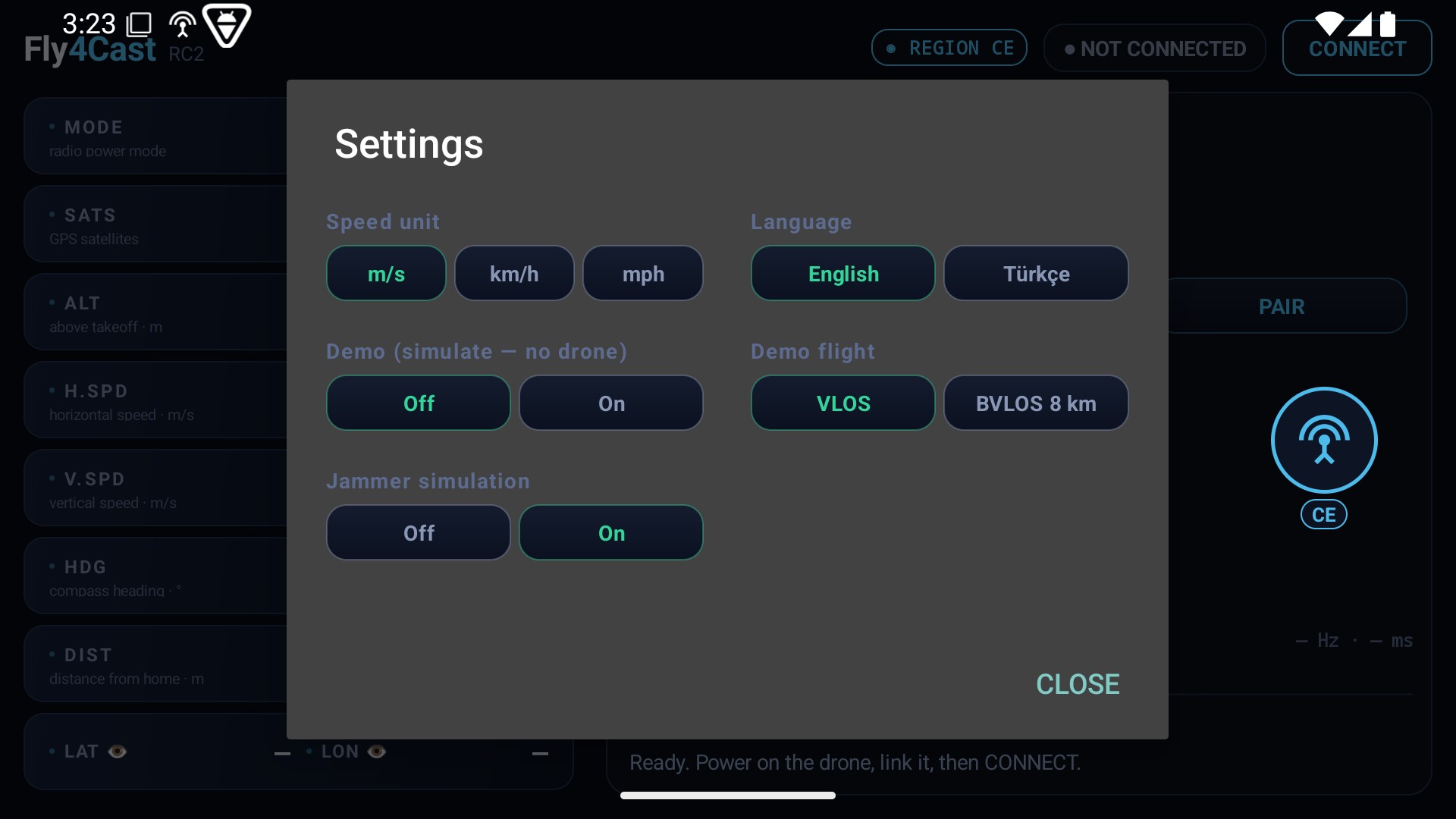
Settings
- Speed unit — m/s, km/h, or mph.
- Language — English or Türkçe.
- Demo — simulate a flight with no drone (VLOS or BVLOS profile).
The floating switcher
A small draggable bubble stays on top of every app, including DJI Fly. Tap it to hop between Fly4cast RC2 and DJI Fly; it also shows the current mode and live satellite count at a glance. Drag it wherever suits you — it remembers where you left it.